I will keep a list of posts (In most of the cases series of posts) that I have in mind, if you are interested on anyone in particular just let me know it by leaving a comment and I will prioritize it.
C++ and MySQL
libmysqlcppcon-dev
libboost-all-dev
Debian Packages
Advanced Image processing with OpenCV
Web Services on C++ with gSoap
Client
wsdl2h -o calc.h http://www.genivia.com/calc.wsdl
sudo soapcpp2 -i -C -I/usr/include/gsoap calc.h
Server
soapcpp2 -I/usr/include/gsoap calc.h
C++ Documentation with Doxygene
sudo apt-get install doxygen
doxygen -g myconfig
INPUT
OUTPUT_DIRECTORY
RECURSIVE
FILE_PATTERNS = *.cpp *.h
GENERATE_XML = YES
Apache modules development
Android development with eclipse and Android sdk
http://dimitar.me/how-to-connect-your-android-phone-to-ubuntu-to-do-developmenttestinginstallations-or-tethering/
lsusb > id
gedit /etc/udev/rules.d/51-android.rules
SUBSYSTEMS==”usb”, ATTRS{idVendor}==”0bb4″, ATTRS{idProduct}==”0c01″, MODE=”0666″
$ sudo restart udev
***SCREENSHOTS
https://help.ubuntu.com/community/AndroidScreenshots
Settings > Applications > Development
Thursday, March 1, 2012

Wednesday, February 29, 2012
Shared Libraries with Eclipse
Hello there! So here we go with another
tutorial, this time explaining how to develop shared libraries using
Eclipse-CDT as IDE. If you are wondering what is Eclipse-CDT, or what
is and IDE that means that you did not read my previous post
explaining these topics:
http://linuxtortures.blogspot.com/2011/01/c-development-tools.html
A. Installing Eclipse-CDT on Debian
Squeeze
Now that you know that and you feel
anxious about start developing let me tell you that I have migrated
recently to Debian and the installation process is a bit more
complicated:
First you have to add the following
line (you are actually adding the debian backports repository) in
your /etc/apt/sources.list
deb http://backports.debian.org/debian-backports squeeze-backports main
Afterward
just run apt-get
update and now you should see Eclipse-CDT in your Synaptic, just
install among all its depencencies.

B.
Creating our 'Client' project and our Shared Library
Once
you have selected your workspace you should be into a screen like the
following one (Close the welcome tab it is not the case)

Click
on File –> New → Project and select C++ Project

Now
Select 'Hello world C++ project', set a name for your project
(MyClientProject in my case) and click on finish (If you receive a
prompt asking for a change of perspective just click on yes):

A
brand new project is now on your workspace ready to be compiled:

Repeat
the first step File → new –> C++ Project but select this time
shared library as project type:

By
clicking of Finish you will get back the project perspective with the
client and the shared library projects included.
C.
Adding some
logic to our Shared Library and compiling it
Let's
add a class to our shared library (Right click over the shared
library project → new → class)

Give
it a name and click on Finish.
Let's
now implement a little public method 'saySomething()' in our class
that returns a string saying 'Im a class'

Now
compile your shared class (Ctrl + b)
You
should see that the Debug Folder contains now the compiled library
(libmytestsharedlibrary.so)

D.
Link our
'Client' to the shared library use it and compile it
We
have basically two different ways to do this, the 'Eclipse' way,
where we specify the folder where the .h is and the folder where the
library is or the 'Linux' way where we copy the shared library and
the header to the default folders (/usr/local/include/ or
/usr/include/ in the case of the header and
/usr/local/lib/ or /usr/lib/ in the case of the libraries).
We are going to do it in the 'Eclipse'
way so right click on your client project (MyClientProject in my
case) and click on 'Properties'. Unfold C/C++ General, select 'GNU
C++' and under the tab 'Includes' select Add:

Click on workspace and select the
shared library (mytestsharedlibrary in my case).

Click on ok and the reference should be
included:

Now
go to the tab 'Library Paths' and add the debug folder of our shared
library (the one that contains the .so file)

The
final result should be something like this:

Finally
we need to include the name of our library. Go to C++ Build →
Settings and under GCC C++ Linker click on add on the library window:

Put
the name of our library (without the initial 'lib' and the final
'.so', in our case that would be mytestsharedlibrary

Click
on OK and
let it rebuilt if you get a prompt asking for it.
E.
Using the library and compiling the client
Modify
the client source code to include
the header file, instantiate an object of our class and print out the
result of calling its method 'saySomething()',
then Build
the project (Ctrl + b):

D.
Running the project
You
are now excited about clicking on play and see what happens right? Ok
you can try but I bet you get an error like:

First
of all we have to create a run configuration, click on the right side
of the Play buttom and select 'Run Configurations …' Double click
over C/C++ Applicaton and click on 'Run'

/home/javier/workspacetest/MyClientProject/Debug/MyClientProject:
error while loading shared libraries: libmytestsharedlibrary.so:
cannot open shared object file: No such file or directory
What happened?? Well, basically the executable did not found the shared library at execution time. You might think that we already configured the path where the library is on previous steps. Indeed we did but what we configured was the 'compilation path', meaning that we let the compiler know where the shared library is. Now we need to let the operative system know where the shared library and that could be done in 2 ways.
1. By exporting the path on the environment variable LD_LIBRARY_PATH
This way is not very recommended but on Eclipse is quite convenient, you can do that by opening again the 'Run configurations' and under the tab 'Enviroment' create a new entry with LD_LIBRARY_PATH as name and ${workspace_loc:/mytestsharedlibrary/Debug} as value. The result should looke like this:

Click on 'Run' and …

2. The second way is a bit more exotic, but is the recommended one. You have to include your shared library path in the file /etc/ld.so.conf or create a file ending on .conf on the directory /etc/ld.so.conf.d that includes the path. Once you have done it run the config ldconfig as superuser.
If you have performed this second way correctly you should be able to execute your your program from the terminal

Sunday, December 18, 2011
Trac
So here we are again this time to talk about "Trac" an integrated SCM and project management tool. I love this tool even though at first glance it could result a bit simplistic. The philosophy is quite clear and if you make a good usage of the tool you will be implementing plenty of recognized good practices on the software engineering even without notice it. Here you can find the original site with a lot of information, tutorials, etc.. As usual, I will focus on this tutorial on how install it and make it works, but I do not discard a future where we will integrate our source code within Trac and create a bunch of online documentation for it.
I will explain two different approaches, the classical one when we have root privileges, and a very particular one by downloading the sources and installing it without root permissions.
A. Install Trac in the classical way.
1. Install easy_install tool (More information here):
2. Install Genshi, a web-template based tool that Trac is based on: (More information here.)
3. Install the python connector that will allows Trac to communicate with a MySQL Database.
4. Install Babel, the internationalization engine that Trac is based on:
5. And finally... Install Trac!!
6. If you want to use Trac with a MySQL Database, you will need to create a Database called trac and provide the needed privileges for the user 'tracuser' from MySQL monitor (More information about how to install and use MySQL on this previous blog):
If you are installing Trac in the same server that MySQL is installed, your connection query should be something like this:
If you are installing it in a different server you will have to change 'localhost' by the IP of the server were MySQL is installed
7. Create a directory where the configuration files of your Trac site will be stored e.g. /var/trac/testsite
8. Execute initenv command indicating the directory created in the previous step (You will be asked for several paramenters, including the connection query retrieved on the step 6) :
The main configuration field of your site is found here:
You can run a built-in server to start playing with your just installed tool:
After doing that you should be able to browse your site:
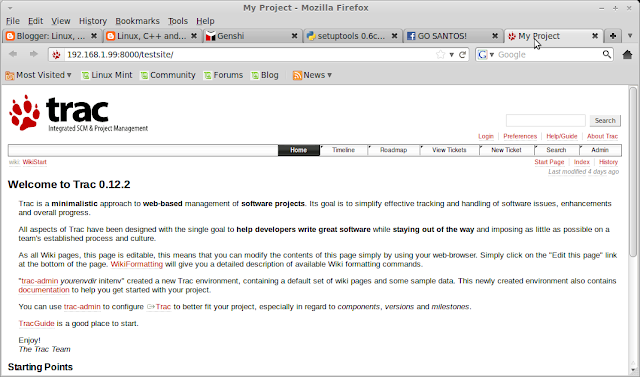
Finally I would like to mention a very interesting command that will provide the default user Administrator privileges over the whole site.
B. Install Trac from the sources
1. Install Python
wget http://www.python.org/ftp/python/2.6.7/Python-2.6.7.tgz
export PATH=$PATH:~/bin/Python-2.6.7/Lib
tar -xvf Python-2.6.7.tgz
2. Install easy_install tool
wget http://pypi.python.org/packages/2.6/s/setuptools/setuptools-0.6c11-py2.6.egg#md5=bfa92100bd772d5a213eedd356d64086
export PYTHONPATH=$PYTHONPATH:/home/javier/bin/EasyInstall
sh setuptools-0.6c11-py2.6.egg --install-dir=~/bin/EasyInstall
export PATH=$PATH:~/bin/EasyInstall
3. Install Genshi
export PYTHONPATH=$PYTHONPATH:~/app/Genshi
easy_install --install-dir=~/app/Genshi/ Genshi
4. Install Babel
export PYTHONPATH=$PYTHONPATH:~/app/Babel
easy_install --install-dir=~/app/Babel/ Babel
5. Install Trac
export PYTHONPATH=$PYTHONPATH:~/app/Trac
easy_install --install-dir=~/app/Trac/ Trac
./trac-admin ~/tracsites/ initenv
./tracd --port 8000 ~/tracsites/ initenv
I will explain two different approaches, the classical one when we have root privileges, and a very particular one by downloading the sources and installing it without root permissions.
A. Install Trac in the classical way.
1. Install easy_install tool (More information here):
sudo apt-get install python-setuptools
2. Install Genshi, a web-template based tool that Trac is based on: (More information here.)
sudo easy_install Genshi
3. Install the python connector that will allows Trac to communicate with a MySQL Database.
sudo apt-get install python-mysqldb
4. Install Babel, the internationalization engine that Trac is based on:
sudo easy_install Babel==0.9.5
5. And finally... Install Trac!!
sudo easy_install Trac
6. If you want to use Trac with a MySQL Database, you will need to create a Database called trac and provide the needed privileges for the user 'tracuser' from MySQL monitor (More information about how to install and use MySQL on this previous blog):
CREATE DATABASE trac DEFAULT CHARACTER SET utf8 COLLATE utf8_bin;
GRANT ALL ON trac.* TO tracuser@localhost IDENTIFIED BY 'administrador';
If you are installing Trac in the same server that MySQL is installed, your connection query should be something like this:
mysql://tracuser:administrador@localhost/trac
If you are installing it in a different server you will have to change 'localhost' by the IP of the server were MySQL is installed
7. Create a directory where the configuration files of your Trac site will be stored e.g. /var/trac/testsite
8. Execute initenv command indicating the directory created in the previous step (You will be asked for several paramenters, including the connection query retrieved on the step 6) :
sudo trac-admin /var/trac/testsite initenv
The main configuration field of your site is found here:
/var/trac/testsite/conf/trac.ini
You can run a built-in server to start playing with your just installed tool:
sudo tracd --port 8000 /var/trac/testsite
After doing that you should be able to browse your site:

Fig.1 Our first Trac Project
Finally I would like to mention a very interesting command that will provide the default user Administrator privileges over the whole site.
sudo trac-admin /var/trac/testsite permission add anonymous TRAC_ADMIN
B. Install Trac from the sources
1. Install Python
wget http://www.python.org/ftp/python/2.6.7/Python-2.6.7.tgz
export PATH=$PATH:~/bin/Python-2.6.7/Lib
tar -xvf Python-2.6.7.tgz
2. Install easy_install tool
wget http://pypi.python.org/packages/2.6/s/setuptools/setuptools-0.6c11-py2.6.egg#md5=bfa92100bd772d5a213eedd356d64086
export PYTHONPATH=$PYTHONPATH:/home/javier/bin/EasyInstall
sh setuptools-0.6c11-py2.6.egg --install-dir=~/bin/EasyInstall
export PATH=$PATH:~/bin/EasyInstall
3. Install Genshi
export PYTHONPATH=$PYTHONPATH:~/app/Genshi
easy_install --install-dir=~/app/Genshi/ Genshi
4. Install Babel
export PYTHONPATH=$PYTHONPATH:~/app/Babel
easy_install --install-dir=~/app/Babel/ Babel
5. Install Trac
export PYTHONPATH=$PYTHONPATH:~/app/Trac
easy_install --install-dir=~/app/Trac/ Trac
./trac-admin ~/tracsites/ initenv
./tracd --port 8000 ~/tracsites/ initenv
Monday, December 12, 2011
MySQL on the Cloud
On this post we are going to install and configure an Instance of MySQL on our remote server. Here http://www.guia-ubuntu.org/index.php?title=MySQL you can find a post talking about this same topic.
First of all we have to install the MySQL Server packages:
sudo apt-get install mysql-server
During the installation you will be asked to introduce the root password.
In order to allow connection from any client, edit /etc/mysql/my.cnf and modify bind-address with the following value:
We need to do the same at operative system level, edit /etc/hosts.allow and include the following line:
We also need to set a final layer of security at application level. Introduce the following command and introduce the password that you set in the installation phase:
Once you are inside the MySQL console type (The semicolon at the end is quite important, do not miss it):
After entering the above command type quit to leave the console:
Now you can connect from your local pc to your remote database on the cloud. There are several interesting tools to manage and use your MySQL database server, my favorites are MySQL Administrator and MySQL Server. You can install it:

Log in with your credentials and your cloud instance identifier and enjoy!!
RESOURCES
First of all we have to install the MySQL Server packages:
sudo apt-get install mysql-server
During the installation you will be asked to introduce the root password.
In order to allow connection from any client, edit /etc/mysql/my.cnf and modify bind-address with the following value:
bind-address = 0.0.0.0
We need to do the same at operative system level, edit /etc/hosts.allow and include the following line:
mysqld: all
We also need to set a final layer of security at application level. Introduce the following command and introduce the password that you set in the installation phase:
mysql -u root -p
Once you are inside the MySQL console type (The semicolon at the end is quite important, do not miss it):
Welcome to the MySQL monitor. Commands end with ; or \g.
Your MySQL connection id is 51
Server version: 5.1.41-3ubuntu12.10 (Ubuntu)
Type 'help;' or '\h' for help. Type '\c' to clear the current input statement.
mysql> GRANT ALL PRIVILEGES ON *.* TO 'root'@'%' IDENTIFIED BY 'root';
Your MySQL connection id is 51
Server version: 5.1.41-3ubuntu12.10 (Ubuntu)
Type 'help;' or '\h' for help. Type '\c' to clear the current input statement.
mysql> GRANT ALL PRIVILEGES ON *.* TO 'root'@'%' IDENTIFIED BY 'root';
After entering the above command type quit to leave the console:
mysql> quit
Bye
Bye
Now you can connect from your local pc to your remote database on the cloud. There are several interesting tools to manage and use your MySQL database server, my favorites are MySQL Administrator and MySQL Server. You can install it:
sudo apt-get install mysql-client mysql-query-browser mysql-admin

Fig.1 MySQL Administrator login
Log in with your credentials and your cloud instance identifier and enjoy!!
RESOURCES
Sunday, December 11, 2011
Mercurial with Apache... on the Cloud!!
And here we go with our third tutorial explaining how to deploy and enjoy applications 'In the cloud'. This time we will take advantage of our previous post where we configured Apache to serve securely and authenticated information across the Internet and we will deploy a distributed source code management system 'Mercurial'. You can find a lot of information about what is and what is Mercurial used for in the official web page http://mercurial.selenic.com/
A. Installing and configuring Apache with Mercurial
And here we go...
The first thing we have to do is install python (Mercurial is developed on python and mercurial packages):
The next step is create our repository folder, and give it the appropriated permissions from where Apache will interact:
Edit the file /var/hg/hgweb.config that you just created and include the following Mercurial configuration directives:

hg sum
Shows state of the working directory (include info of the repository).
--remote (shows if there are incomings)
hg st
Shows differences of the working directory with the current working repository.
hg resolve -m <file>
Mark file as resolved (we have to make a commit afterwards)
hg incoming
Show if there is a new changeset coming from the central repository
-p Show the differences between files
hg outcoming
Show if there is a new changeset going to the central repository
A. Installing and configuring Apache with Mercurial
And here we go...
The first thing we have to do is install python (Mercurial is developed on python and mercurial packages):
sudo apt-get install python python-dev mercurial
The next step is create our repository folder, and give it the appropriated permissions from where Apache will interact:
sudo mkdir -p /var/hg/repos
sudo touch /var/hg/hgweb.config
sudo chown -R www-data:www-data /var/hg
sudo touch /var/hg/hgweb.config
sudo chown -R www-data:www-data /var/hg
Edit the file /var/hg/hgweb.config that you just created and include the following Mercurial configuration directives:
[collections]
repos/ = repos/
[web]
style = gitweb
Now we are going to copy a little script that will allow to interact apache with our Mercurial repository and again we will set the correct permissions:
cd /var/hg/
sudo cp /usr/share/doc/mercurial/examples/hgwebdir.cgi ./
sudo chown www-data:www-data ./hgwebdir.cgi
sudo chmod +x ./hgwebdir.cgi
sudo chown www-data:www-data ./hgwebdir.cgi
sudo chmod +x ./hgwebdir.cgi
In the following step we are going to initialize a repository called 'myRepos', this is the general way to do it, so if in the future you need to initialize another repository you just need to execute this command again by changing the name of 'myRepos' by the new name.
sudo su - www-data -c "hg init /var/hg/repos/myRepos"
Edit your new repository config file /var/hg/repos/myRepos/.hg/hgrc to include information about itself and allow push from everywhere (push is mercurial terminology)
[web]
contact = Javier
description = My first Mercurial repository
allow_push = *
# Allow the download for the last snapshot in compacted format
allow_archive = gz zip bz2
contact = Javier
description = My first Mercurial repository
allow_push = *
# Allow the download for the last snapshot in compacted format
allow_archive = gz zip bz2
And last but not least we have to configure Apache to start serving from our repository, this is done by adding the following section on the /etc/apache2/sites-available/default-ssl:
AddHandler cgi-script .cgi
ScriptAliasMatch ^/hg(.*) /var/hg/hgwebdir.cgi$1
<Directory "/var/hg">
Options FollowSymLinks +ExecCGI
AllowOverride All
Order allow,deny
Allow from all
AuthType Basic
AuthName "Password Required"
AuthUserFile /etc/apache2/passwd/passwords
Require valid-user
</Directory>
You can place it right after the <Directory /var/www/> section so your config file will looks like:
...
<Directory /var/www/>
Options Indexes FollowSymLinks MultiViews
AllowOverride None
Order allow,deny
allow from all
AuthType Basic
AuthName "Password Required"
AuthUserFile /etc/apache2/passwd/passwords
Require valid-user
</Directory>
Options Indexes FollowSymLinks MultiViews
AllowOverride None
Order allow,deny
allow from all
AuthType Basic
AuthName "Password Required"
AuthUserFile /etc/apache2/passwd/passwords
Require valid-user
</Directory>
AddHandler cgi-script .cgi
ScriptAliasMatch ^/hg(.*) /var/hg/hgwebdir.cgi$1
<Directory "/var/hg">
Options FollowSymLinks +ExecCGI
AllowOverride All
Order allow,deny
Allow from all
AuthType Basic
AuthName "Password Required"
AuthUserFile /etc/apache2/passwd/passwords
Require valid-user
</Directory>
...
Restart apache:
sudo apache2ctl restart
And that's all!! You can now access to your repository via web:

B. Using mercurial from our local machine
First of all you will need to install Mercurial in your local machine:
sudo apt-get install mercurial mercurial-common
Now that we have created a remote repository, we can clone it locally an perform our changes:
(From your local pc)
mkdir ~/MercurialRepositories
cd ~/MercurialRepositories
hg clone https://ec2-46-137-60-179.eu-west-1.compute.amazonaws.com/hg/myRepos/
You will receive a set of messages as following:
warning: ec2-46-137-60-179.eu-west-1.compute.amazonaws.com certificate with fingerprint 6a:11:f3:d4:be:ed:54:f3:d3:78:ca:6b:03:58:55:b0:3b:25:44:58 not verified (check hostfingerprints or web.cacerts config setting)
http authorization required
realm: Password Required
user: javier
password:
warning: ec2-46-137-60-179.eu-west-1.compute.amazonaws.com certificate with fingerprint 6a:11:f3:d4:be:ed:54:f3:d3:78:ca:6b:03:58:55:b0:3b:25:44:58 not verified (check hostfingerprints or web.cacerts config setting)
destination directory: myRepos
warning: ec2-46-137-60-179.eu-west-1.compute.amazonaws.com certificate with fingerprint 6a:11:f3:d4:be:ed:54:f3:d3:78:ca:6b:03:58:55:b0:3b:25:44:58 not verified (check hostfingerprints or web.cacerts config setting)
no changes found
updating to branch default
resolving manifests
0 files updated, 0 files merged, 0 files removed, 0 files unresolved
http authorization required
realm: Password Required
user: javier
password:
warning: ec2-46-137-60-179.eu-west-1.compute.amazonaws.com certificate with fingerprint 6a:11:f3:d4:be:ed:54:f3:d3:78:ca:6b:03:58:55:b0:3b:25:44:58 not verified (check hostfingerprints or web.cacerts config setting)
destination directory: myRepos
warning: ec2-46-137-60-179.eu-west-1.compute.amazonaws.com certificate with fingerprint 6a:11:f3:d4:be:ed:54:f3:d3:78:ca:6b:03:58:55:b0:3b:25:44:58 not verified (check hostfingerprints or web.cacerts config setting)
no changes found
updating to branch default
resolving manifests
0 files updated, 0 files merged, 0 files removed, 0 files unresolved
If you want to avoid all these annoying warnings just edit the file ~/MercurialRepositories/myRepos/.hg/hgrc
And add the following lines:
[hostfingerprints]
ec2-46-137-60-179.eu-west-1.compute.amazonaws.com = 6a:11:f3:d4:be:ed:54:f3:d3:78:ca:6b:03:58:55:b0:3b:25:44:58
ec2-46-137-60-179.eu-west-1.compute.amazonaws.com = 6a:11:f3:d4:be:ed:54:f3:d3:78:ca:6b:03:58:55:b0:3b:25:44:58
Where the value of the fingerprint is the one displayed on the warning
Resources
APENDIX
A. Some useful commands on mercurial:
hg sum
Shows state of the working directory (include info of the repository).
--remote (shows if there are incomings)
hg st
Shows differences of the working directory with the current working repository.
hg resolve -m <file>
Mark file as resolved (we have to make a commit afterwards)
hg incoming
Show if there is a new changeset coming from the central repository
-p Show the differences between files
hg outcoming
Show if there is a new changeset going to the central repository
Apache on the Cloud
I will explain step by step how to configure Apache within a Ubuntu server running in the Cloud. In my previous post I explained how to configure the Amazon Web Service in order to have an Ubuntu Server running 7x24. At the end of this tutorial we will have a public html page visible to everybody.
A. Connect into your remote instance and install Apache
Belive it or not you just created and publish a web page on the Internet. Open your favorite web browser and paste on the url the identifier of your cloud instance (You can find it in your connector command, in my case ec2-46-137-60-179.eu-west-1.compute.amazonaws.com)

B. Configure Apache for ssh connection and authentication
Ok, that was pretty impressive, but what happens if you want to transmit and receive all the information encrypted, and actually what if I do not want everybody accessing to my web page. All this can be achieved by configuring apache. We will explain here the steps needed on Ubuntu, but if you are seriously thinking on developing web applications you should get some background on Apache. Here http://www.apache.org/dist/httpd/docs/ you can find the official apache documentation.
On the Ubuntu Server 10.04 the version of apache installed by default is the 2.2
So the file you are looking for is httpd-docs-2.2.14.en.pdf
That being said here you can find a set of commands that you will use in your daily life with Apache
sudo update-rc.d -f apache2 remove --> Prevent Apache autostart
sudo update-rc.d apache2 defaults --> Restore Apache autostart
sudo apache2ctl -k start --> Starts apache
sudo apache2ctl -k stops --> Stop apache
sudo apache2ctl restart --> Restart apache (Needed when you change a configuration file to be took into account)
a2dismod/a2enmod --> Disable/Enable module
a2dissite/a2ensite --> Disable/Enable site
B.1 Configure Apache for ssh connection
Enable the Apache ssl module, the default ssl site and restart Apache:
sudo a2enmod ssl
sudo a2ensite default-ssl
apache2ctl restart
By doing this you should be able to access to your web site via https. By default you are using a Non verified certificate so Firefox will warn you about this. Just add the exception and continue.

If you want to use your own certificates just follow these steps:
Create the directory where you want to store the certificate:
sudo mkdir /etc/apache2/ssl
Generate the certificate (You will have to enter several information that will be attached within the certificate):
Now you can find your own certificate under /etc/apache2/ssl:
Finally we have to modify the Apache config file to indicate that it has to use the certificate that we just generated. This is done by editing the file:
Remove these two lines:
And include this line indicating the path to your certificate (Our certificate include the key itself, so is not needed to include the equivalent second line):
Once done restart apache:
A. Connect into your remote instance and install Apache
ssh -i Ubuntu_10_04_32.pem ubuntu@ec2-46-137-60-179.eu-west-1.compute.amazonaws.com
sudo apt-get update
sudo apt-get install apache2 apache2-utils apache2-threaded-dev
Belive it or not you just created and publish a web page on the Internet. Open your favorite web browser and paste on the url the identifier of your cloud instance (You can find it in your connector command, in my case ec2-46-137-60-179.eu-west-1.compute.amazonaws.com)

Fig.1 Our public page
B. Configure Apache for ssh connection and authentication
Ok, that was pretty impressive, but what happens if you want to transmit and receive all the information encrypted, and actually what if I do not want everybody accessing to my web page. All this can be achieved by configuring apache. We will explain here the steps needed on Ubuntu, but if you are seriously thinking on developing web applications you should get some background on Apache. Here http://www.apache.org/dist/httpd/docs/ you can find the official apache documentation.
On the Ubuntu Server 10.04 the version of apache installed by default is the 2.2
ubuntu@ip-10-48-98-200:~$ apache2ctl -v
Server version: Apache/2.2.14 (Ubuntu)
Server built: Nov 3 2011 03:31:27
Server version: Apache/2.2.14 (Ubuntu)
Server built: Nov 3 2011 03:31:27
So the file you are looking for is httpd-docs-2.2.14.en.pdf
That being said here you can find a set of commands that you will use in your daily life with Apache
sudo update-rc.d -f apache2 remove --> Prevent Apache autostart
sudo update-rc.d apache2 defaults --> Restore Apache autostart
sudo apache2ctl -k start --> Starts apache
sudo apache2ctl -k stops --> Stop apache
sudo apache2ctl restart --> Restart apache (Needed when you change a configuration file to be took into account)
a2dismod/a2enmod --> Disable/Enable module
a2dissite/a2ensite --> Disable/Enable site
B.1 Configure Apache for ssh connection
Enable the Apache ssl module, the default ssl site and restart Apache:
sudo a2enmod ssl
sudo a2ensite default-ssl
apache2ctl restart
By doing this you should be able to access to your web site via https. By default you are using a Non verified certificate so Firefox will warn you about this. Just add the exception and continue.

If you want to use your own certificates just follow these steps:
Create the directory where you want to store the certificate:
sudo mkdir /etc/apache2/ssl
Generate the certificate (You will have to enter several information that will be attached within the certificate):
sudo openssl req -new -x509 -days 365 -nodes -out /etc/apache2/ssl/apache.pem -keyout /etc/apache2/ssl/apache.pem
Generating a 1024 bit RSA private key
..............................................................++++++
..++++++
writing new private key to '/etc/apache2/ssl/apache.pem'
-----
You are about to be asked to enter information that will be incorporated
into your certificate request.
What you are about to enter is what is called a Distinguished Name or a DN.
There are quite a few fields but you can leave some blank
For some fields there will be a default value,
If you enter '.', the field will be left blank.
-----
Country Name (2 letter code) [AU]:FR
State or Province Name (full name) [Some-State]:PACA
Locality Name (eg, city) []:Antibes
Organization Name (eg, company) [Internet Widgits Pty Ltd]:N/A
Organizational Unit Name (eg, section) []:N/A
Common Name (eg, YOUR name) []:Javier
Email Address []:jbravoc27@hotmail.com
..............................................................++++++
..++++++
writing new private key to '/etc/apache2/ssl/apache.pem'
-----
You are about to be asked to enter information that will be incorporated
into your certificate request.
What you are about to enter is what is called a Distinguished Name or a DN.
There are quite a few fields but you can leave some blank
For some fields there will be a default value,
If you enter '.', the field will be left blank.
-----
Country Name (2 letter code) [AU]:FR
State or Province Name (full name) [Some-State]:PACA
Locality Name (eg, city) []:Antibes
Organization Name (eg, company) [Internet Widgits Pty Ltd]:N/A
Organizational Unit Name (eg, section) []:N/A
Common Name (eg, YOUR name) []:Javier
Email Address []:jbravoc27@hotmail.com
Now you can find your own certificate under /etc/apache2/ssl:
ll /etc/apache2/ssl
drwxr-xr-x 2 root root 4096 2011-12-11 12:08 ./
drwxr-xr-x 8 root root 4096 2011-12-11 12:07 ../
-rw-r--r-- 1 root root 2136 2011-12-11 12:09 apache.pem
drwxr-xr-x 2 root root 4096 2011-12-11 12:08 ./
drwxr-xr-x 8 root root 4096 2011-12-11 12:07 ../
-rw-r--r-- 1 root root 2136 2011-12-11 12:09 apache.pem
Finally we have to modify the Apache config file to indicate that it has to use the certificate that we just generated. This is done by editing the file:
/etc/apache2/sites-available/default-ssl
Remove these two lines:
SSLCertificateFile /etc/ssl/certs/ssl-cert-snakeoil.pem
SSLCertificateKeyFile /etc/ssl/private/ssl-cert-snakeoil.key
SSLCertificateKeyFile /etc/ssl/private/ssl-cert-snakeoil.key
And include this line indicating the path to your certificate (Our certificate include the key itself, so is not needed to include the equivalent second line):
SSLCertificateFile /etc/apache2/ssl/apache.pem
Once done restart apache:
sudo apache2ctl restart
You will have to add a new exception to Firefox:

If the button to accept is not enables (as it is my case) just clear all the recent history and try again:

The last thing we are going to do is to disable the 'Non-https' access, so everybody trying to access our site will have to do it using https. There is a more elegant solution that is redirecting the request from the 'Non-https' to 'https', again this can be done by manipulating the Apache config files, but this is out of the scope of this post.
To disable the 'Non-http' access just type:
Now if you try to access to your site without https, (ec2-46-137-60-179.eu-west-1.compute.amazonaws.com) you will receive a nice 'Not Found' mozilla error.
If you want to avoid apache warning when restarting the server, just comment or remove the following lines in the config file /etc/apache2/ports.conf:
B. Enabling Authentication
Now that we have set up a secure conversation by using ssl, we can ask our users for a password and control the access to our site.
The first thing we have to do is create a folder and a file where we are going to store all our users ans its associated password:
Now we create an user using the apache tool htpasswd
You will be asked to introduce your password:
If you have a look to the password file you will see that a new line with the user 'javier' and an encrypted password has been created:
Now we just need to configure apache to ask for a password when an user is trying to access to our site.
Open the configuration file:
And modify the following section:
by:
and restart Apache again:
Now when you try to access to your site you will be asked to introduce an user and a password (You might need to clear the Firefox history to avoid the browser cache):

And that's all folks!! You have configured (well you have mostly used the default configuration) a secure conversation plus authentication for your web site. This is the basic security access protection for an enormous amount of web sites out there on the Internet.

If the button to accept is not enables (as it is my case) just clear all the recent history and try again:

The last thing we are going to do is to disable the 'Non-https' access, so everybody trying to access our site will have to do it using https. There is a more elegant solution that is redirecting the request from the 'Non-https' to 'https', again this can be done by manipulating the Apache config files, but this is out of the scope of this post.
To disable the 'Non-http' access just type:
sudo a2dissite 000-default
sudo apache2ctl restart
Now if you try to access to your site without https, (ec2-46-137-60-179.eu-west-1.compute.amazonaws.com) you will receive a nice 'Not Found' mozilla error.
If you want to avoid apache warning when restarting the server, just comment or remove the following lines in the config file /etc/apache2/ports.conf:
NameVirtualHost *:80
Listen 80
Listen 80
B. Enabling Authentication
Now that we have set up a secure conversation by using ssl, we can ask our users for a password and control the access to our site.
The first thing we have to do is create a folder and a file where we are going to store all our users ans its associated password:
sudo mkdir /etc/apache2/passwd
sudo touch /etc/apache2/passwd/passwords
Now we create an user using the apache tool htpasswd
sudo htpasswd -c /etc/apache2/passwd/passwords javier
You will be asked to introduce your password:
New password:
Re-type new password:
Adding password for user javier
Re-type new password:
Adding password for user javier
If you have a look to the password file you will see that a new line with the user 'javier' and an encrypted password has been created:
cat /etc/apache2/passwd/passwords
javier:UIkS/YN9TzvSM
javier:UIkS/YN9TzvSM
Now we just need to configure apache to ask for a password when an user is trying to access to our site.
Open the configuration file:
/etc/apache2/sites-available/default-ssl default
And modify the following section:
<Directory /var/www/>
Options Indexes FollowSymLinks MultiViews
AllowOverride None
Order allow,deny
allow from all
</Directory>
Options Indexes FollowSymLinks MultiViews
AllowOverride None
Order allow,deny
allow from all
</Directory>
by:
<Directory /var/www/>
Options Indexes FollowSymLinks MultiViews
AllowOverride None
Order allow,deny
allow from all
AuthType Basic
AuthName "Password Required"
AuthUserFile /etc/apache2/passwd/passwords
Require valid-user
</Directory>
Options Indexes FollowSymLinks MultiViews
AllowOverride None
Order allow,deny
allow from all
AuthType Basic
AuthName "Password Required"
AuthUserFile /etc/apache2/passwd/passwords
Require valid-user
</Directory>
and restart Apache again:
sudo apache2ctl restart
Now when you try to access to your site you will be asked to introduce an user and a password (You might need to clear the Firefox history to avoid the browser cache):

And that's all folks!! You have configured (well you have mostly used the default configuration) a secure conversation plus authentication for your web site. This is the basic security access protection for an enormous amount of web sites out there on the Internet.
Saturday, December 10, 2011
Ubuntu on the Cloud
It has been a long time since the last post but I hope that this interesting post will compensate the wait.
Today we are going to talk about something that has become very trendy in the last years 'The cloud'. The first question is quite obvious... What is the Cloud? Based on Wikipedia's definition: 'Cloud computing is the delivery of computing as a service rather than a product, whereby shared resources, software, and information are provided to computers and other devices as a utility (like the electricity grid) over a network (typically the Internet).'
Do not feel silly if after reading this definition you are still wondering what is the Cloud... Actually the cloud can potentially means a lot of things. If you ask an Ipod user what is the Cloud he will probably relate it with remote storage, the ability of playing his music from several devices and some other Mac related services that are not very interesting for us at this moment.
The cloud I am going to explain on this post is mostly related with the 'Infrastructure as a Service' cloud approach. Yes ok, but... What that's means?? That means in its most basic meaning an Ubuntu running somewhere.
Somewhere is usually a Data-center, like the ones constructed and used by Facebook to provide services to an enormous amount of people, and it is basically a set of thousands servers running (and consuming) continuously.


Fig.1 Amazon Date-Center in Oregon

Fig.2 A typical Data-Center from the inside
And here is where the business comes. Companies like Amazon with hundred of Data-centers all around the world hosting their own web applications (Does Amazon.com tell you something?) decided to step forward and offer a piece of this Data-center cake to anybody willing at pay the price they established. And guess what, the technology used to provide remotes operative system is based on virtualization techniques.
I bet you are wondering right now how much does it cost having a full accessible Ubuntu running on the cloud 7x24... The answer is nothing (During the first year)!! Amazon offers you a free-tier that consists on a limited usage (750 hours of Amazon EC2 Linux Micro Instance usage [613 MB of memory and 32-bit and 64-bit platform support] ).
If you make your calculations a 31 days month has 744 hours, so basically you can run this micro instance for free during a whole year. Actually there are more limitations, like in the amount of data that you transmit to your remote Ubuntu and the number of http transactions (100.000). In any case this is more than enough for a little web server hosting a database and serving our dynamic web applications. Actually you have to take into account that each time that you start an stop your instance (Your remote Ubuntu) it count as an extra-hour. Here 'http://aws.amazon.com/free/' you can find all the conditions of the free-tier usage.
Here you can find a calculator that allows you make an idea about how much you will pay based on your usage and the type of Operative System that you are hosting (You can host a Windows Server instead than an Ubuntu).
A. Creating a remote Instance
So let's go!! All you need is an Amazon account (you probably have one already) and sign on the Amazon Web Services (from now on AWS) account http://aws.amazon.com/
Once you have created your AWS account you can log on the AWS Management console and create your instances (An instance == An operative system running on the cloud).

Fig.3 Dashboard page
From the dashboard select your region on the left and if it does not exists create a 'Default' security group (Under Networking & Security) add the rules to allow accessing to ssh, web, mysql, web https, and all that you potentially could need (You can take the following screen-shot as reference).

Back to the Dashboard, click on launch instance, select Launch Classic Wizard and under the tab “Community AMIs” search for the Ubuntu instance that fits with your needs. Here http://cloud-images.ubuntu.com/releases/10.04/release/ you can find a list of Ubuntu releases with its associated amids. Remember that only the micro instances are for free!!

Fig.5 AMID Selection
In our case, for Europe Region we have two choices:
eu-west-1 64-bit ebs ami-cc0e3cb8 ec2-run-instances ami-cc0e3cb8 --instance-type t1.micro --region eu-west-1 --key ${EC2_KEYPAIR_EU_WEST_1}
eu-west-1 32-bit ebs ami-c00e3cb4 ec2-run-instances ami-c00e3cb4 --instance-type t1.micro --region eu-west-1 --key ${EC2_KEYPAIR_EU_WEST_1}
In my case I will choose the 32 bits instance.
Select no preferences on the Availability zone screen, and leave all the data as appear by default on the Advance Instance Option screen.
Include a tag to identify your instance (this is normally used when you have to manage a big amount of instances) and
Create a new 'Key Pair' in the next screen. This will allow you to connect from your local computer by doing an ssh. If you loose this file you will need to create a new pair and associate your instance with the new one, so save it carfully.

Fig.6 Keys Creation and download
Choose the security group that you created in the previous step and click on Continue.

Fig.7 Security group selection
A final recap like the shown below will be displayed. Just click on launch and you will have your remote Instance running!

Fig.8 Instance recap
You can see your instance under the tab Instances.

Fig.9 Instances list
If you want to connect to your remote instance (I bet you want) right click on your instance and select connect. This will generate a ssh command like:
ssh -i UbuntuServer32.pem ubuntu@ec2-46-137-60-179.eu-west-1.compute.amazonaws.com
You just have to open a local Terminal, go to the folder where you downloaded your private key (on the step where your instance) and type the ssh command. If everything is ok and you configured the security rules as indicated, you should get a welcome screen like the following one:

Fig.10 Remote connection
Resources
Subscribe to:
Posts (Atom)